

This text was written with the help of AI.
PagePin has two tools for feedback on a WordPress page. They look similar at first, but they solve different problems. Here is how to tell them apart.
Pinshots: a report, sent once
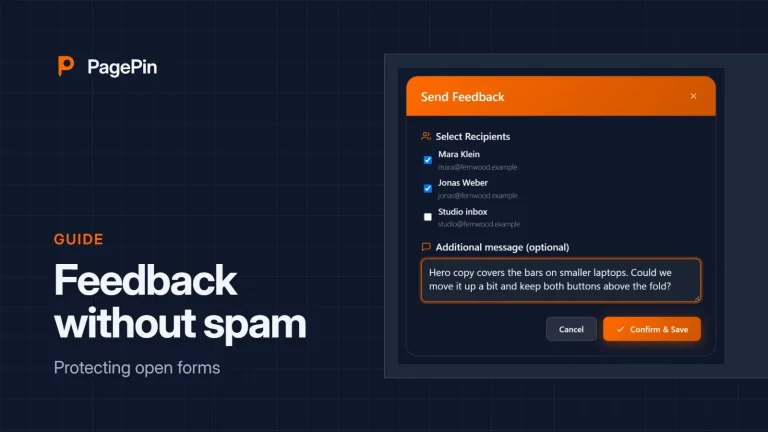
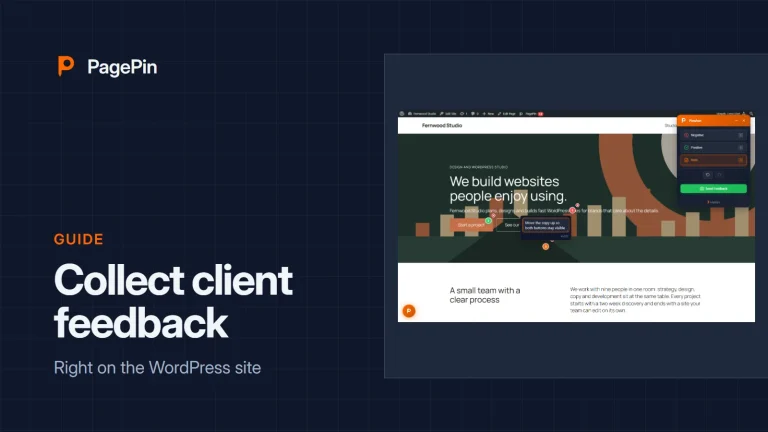
A Pinshot is a screenshot of the page with numbered markers. You open the toolbar with Ctrl+Alt+F, pick a marker type with the keys 1, 2 and 3, place markers and add notes. PagePin saves the screenshot in WordPress, and Send in the Pinshot list e-mails it to up to five recipients.
- Bug in red for problems, OK in green for approvals, Note in orange for comments
- Undo and redo with Ctrl+Z and Ctrl+Y, on a Mac Cmd+Z and Cmd+Shift+Z, drag markers to move them
- In the admin each Pinshot moves from new to sent to resolved
Use a Pinshot when one person reports something that someone else fixes: a broken layout, a typo, a release that is ready for approval.
Pinpoints: a thread that stays
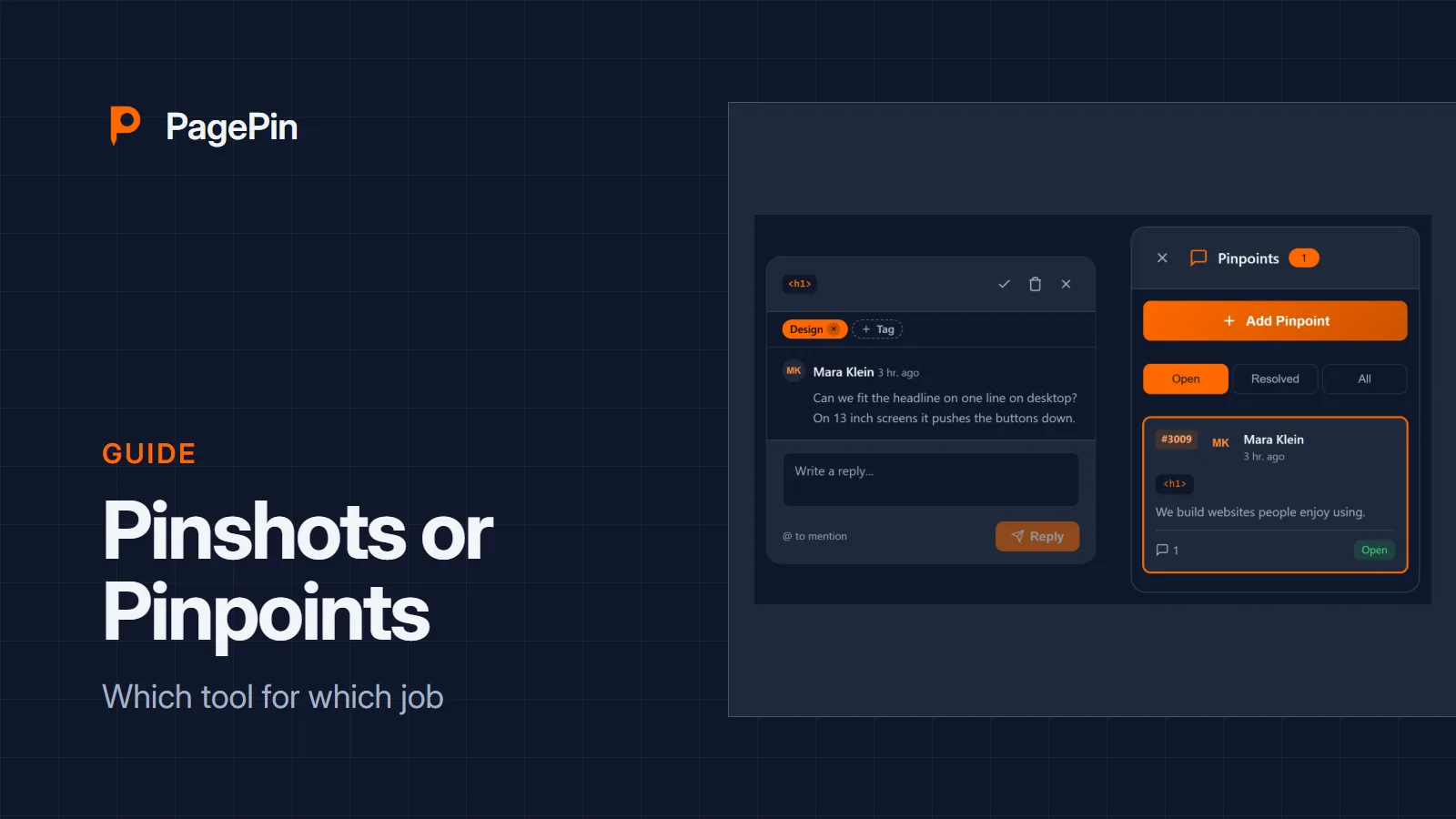
A Pinpoint is a comment thread attached to an element of the page. It stays on that element when the layout changes: PagePin finds the element again by CSS selector, XPath and text preview, and if the element is gone, the thread is marked instead of moving to the wrong place.
- Mention team members or guests with @
- Resolve a thread and reopen it when needed
- Colored tags and a sidebar with every thread and unread badges
Use a Pinpoint when several people discuss a detail over days: a design review, a headline that needs three rounds, a question to the client.
Using both
The tools work side by side. Many teams use Pinpoints during the review and Pinshots for bugs after launch. Try both in the live demo.
Sources
- PagePin features, pagepin.io
- PagePin FAQ, pagepin.io