


This text was written with the help of AI.
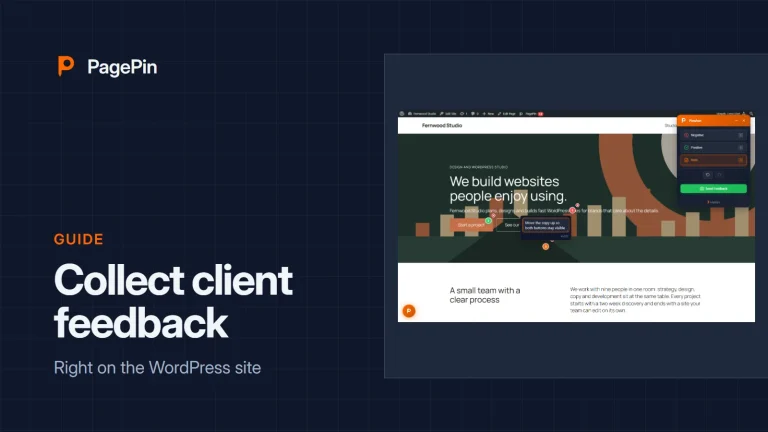
To collect feedback from visitors in WordPress with PagePin, install the free plugin, set an email recipient and switch on Public feedback under PagePin, Settings, Public feedback. Visitors then see a Feedback button, mark spots on the page and send a Pinshot: a screenshot with numbered markers and notes. Reports stay in your WordPress database. Nothing goes to an external service unless you add a CAPTCHA or a webhook.
This guide covers the setup in eight steps, from the installation to the first report in the admin. The screenshots show PagePin 1.1.6.1 on WordPress 7.1 with the Twenty Twenty-Five theme.
What you need
- WordPress 6.4 or later with PHP 8.1 or later
- An administrator account
- A published privacy policy page, set under Settings, Privacy
Step 1: Install PagePin
In the WordPress admin go to Plugins, Add Plugin, search for PagePin, click Install Now and then Activate. You can also download the plugin from WordPress.org. After activation PagePin opens its settings page.
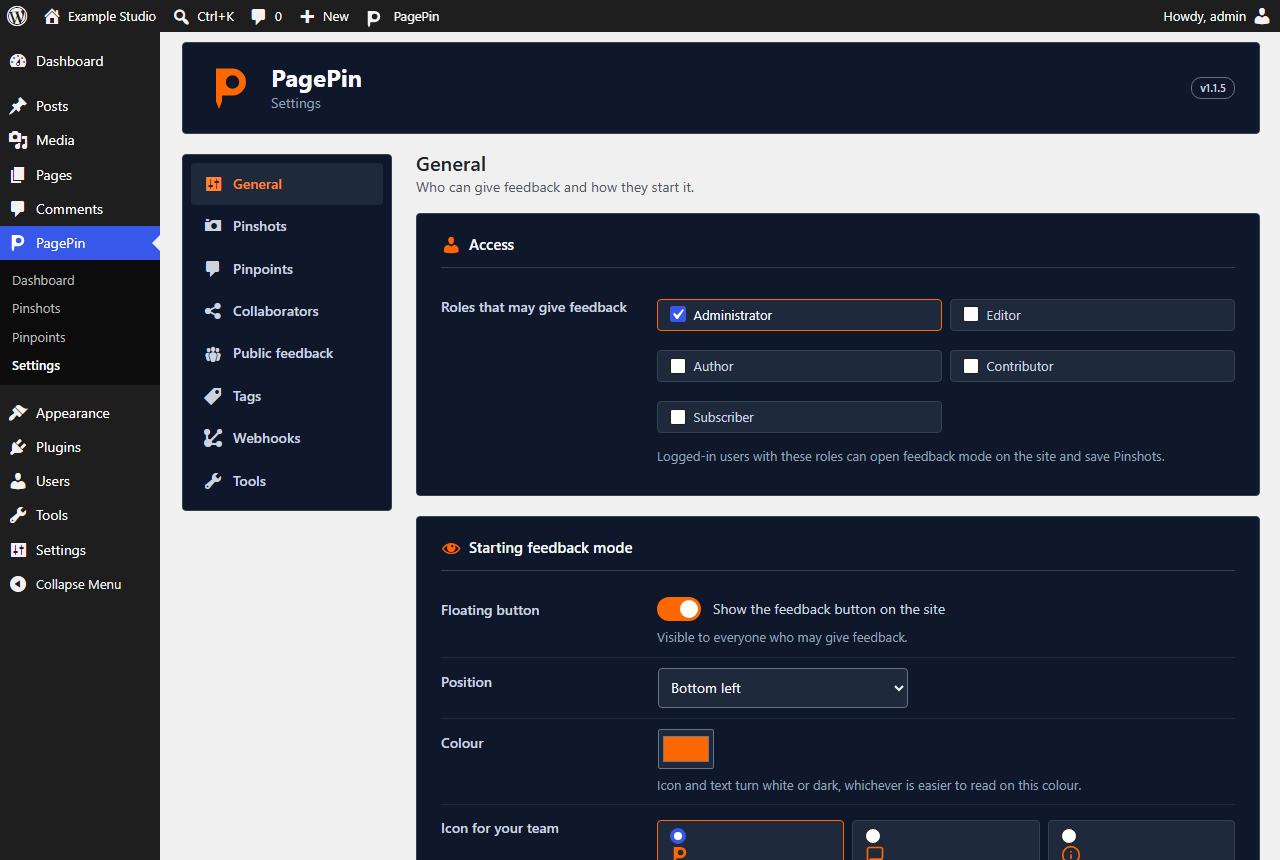
The General tab decides which logged-in roles may give feedback; administrators are allowed by default. Visitors need no role. For them there is a separate switch in step 3.
Step 2: Set who receives the reports
Open the Pinshots tab. Under Email you enter up to 5 recipients; the address of the site admin is set by default. Reports from visitors go out by email right away, with the screenshot attached. The subject accepts the placeholders {page_title} and {site_name}.
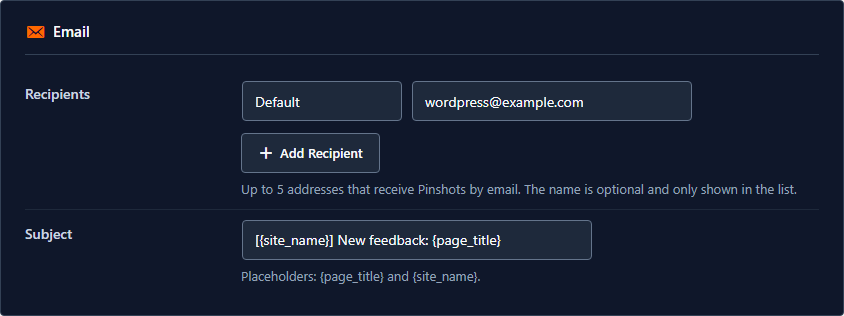
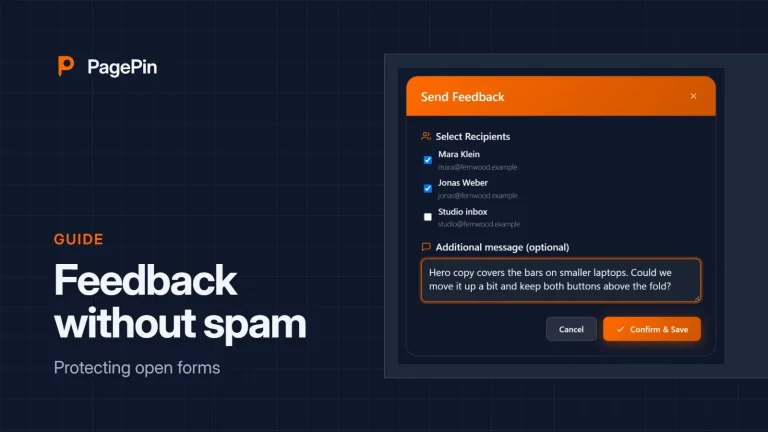
Give each recipient a name such as Support. Visitors see the names in the send dialog, never the addresses. Under Tools, Send Test Email checks whether your server delivers mail at all.
Step 3: Switch on public feedback
Open the Public feedback tab and switch on Allow visitors without an account to send feedback. It is off by default. Keep Ask visitors for their email address on if you want to reply; the address is stored with the Pinshot. Then click Save Settings.
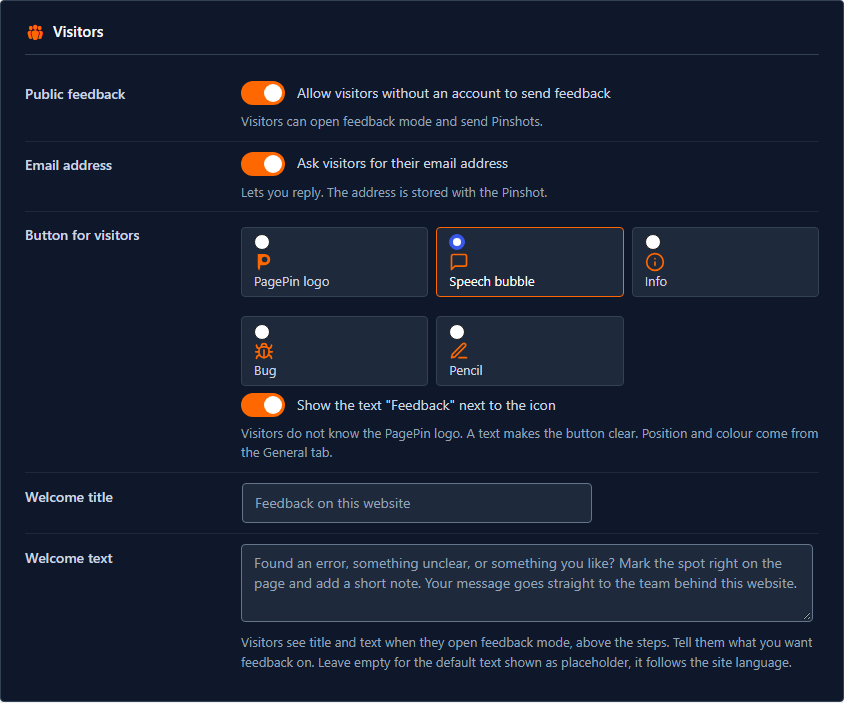
From now on PagePin loads its scripts for every visitor. Without public feedback it loads them only for logged-in users with a feedback role and for invited collaborators.
Step 4: Make the button clear for visitors
Visitors do not know the PagePin logo. That is why they get their own button: on the Public feedback tab you choose its icon (speech bubble by default, or info, bug, pencil and the logo) and whether the text Feedback appears next to it. Corner and colour are set on the General tab, under Starting feedback mode.
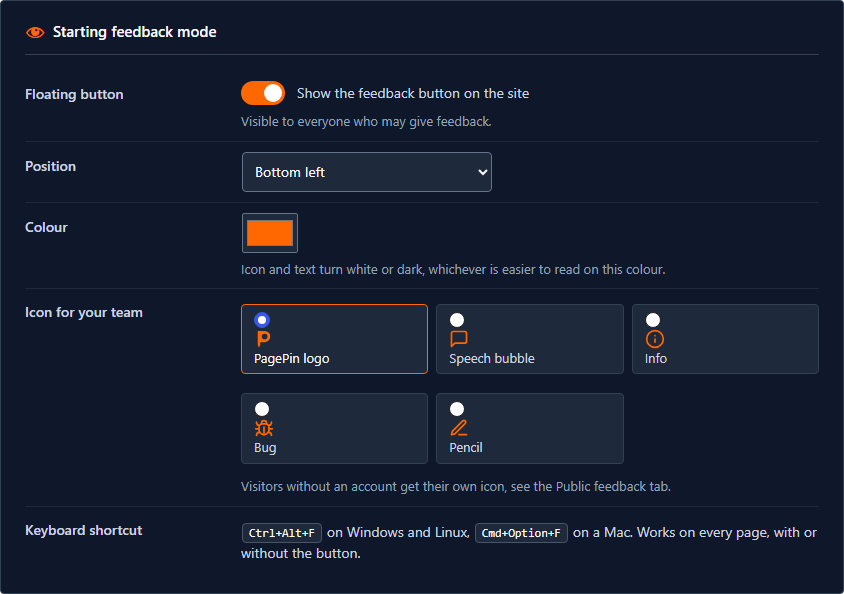
Icon and text turn white or dark, whichever has more contrast on the chosen colour, so a light brand colour stays readable. With a visible text, screen readers announce exactly that text. For a different wording use the filter pagepin_button_label, for example in the functions.php of a child theme:
add_filter( 'pagepin_button_label', function ( $label, $is_public ) {
	return $is_public ? __( 'Report a problem', 'my-theme' ) : $label;
}, 10, 2 );Tell visitors what the feedback is for
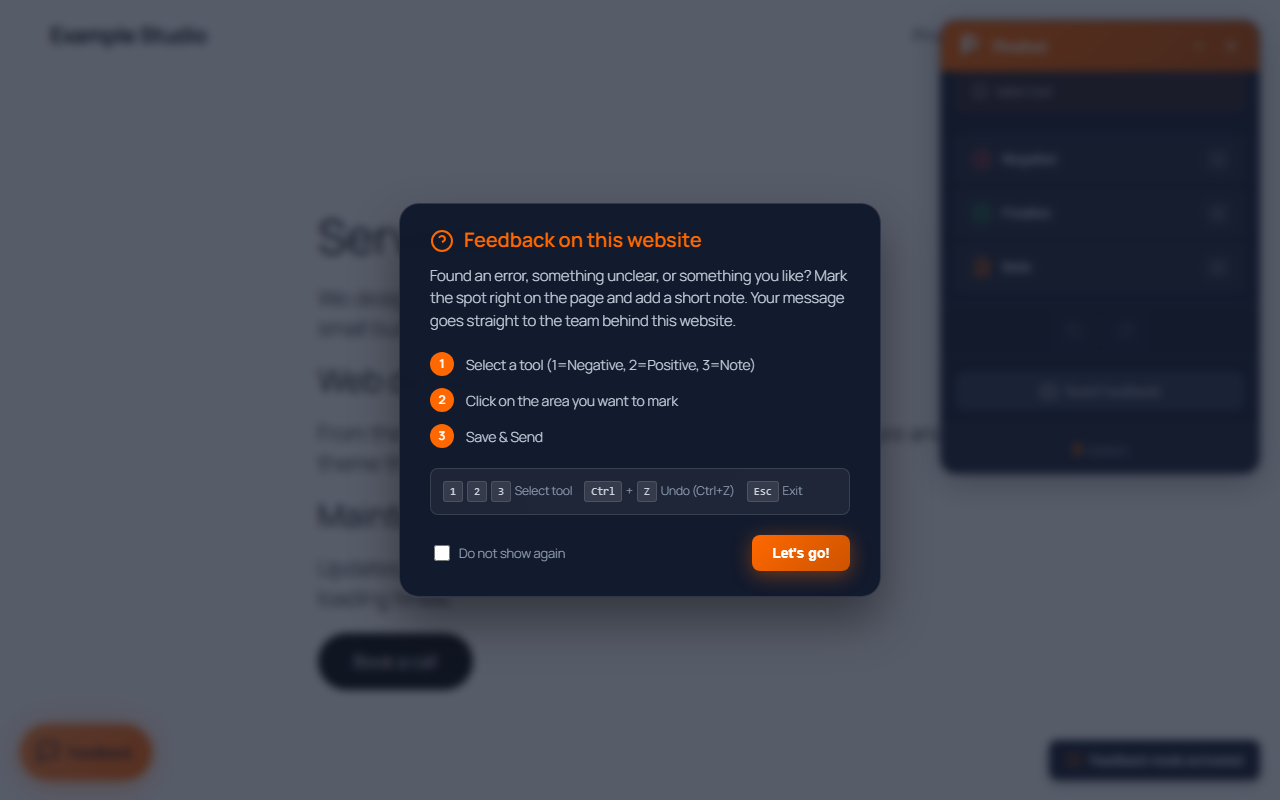
A button alone does not say what you want to hear about: bugs, wrong prices, a confusing form or praise for your product. When visitors open feedback mode, PagePin first shows a short welcome above the steps. By default its title is Feedback on this website, and the text asks whether they found an error, something unclear or something they like, and says that the message goes straight to the team behind the website.
You change both on the Public feedback tab, card Visitors, under Welcome title and Welcome text (since PagePin 1.1.6.1). Write what you want feedback on, for example: Found a bug in our shop or missing a product? Mark the spot and tell us. Leave the fields empty to keep the default text, which follows the language of the site.
Step 5: Keep spam out
Three checks are on by default and run on your own server: a honeypot field that only bots fill in, a time check that rejects reports sent within 5 seconds of loading the page, and a limit of 10 reports per hour and IP address. PagePin does not store IP addresses with the feedback; the limit keeps a keyed hash of the address for at most one hour.
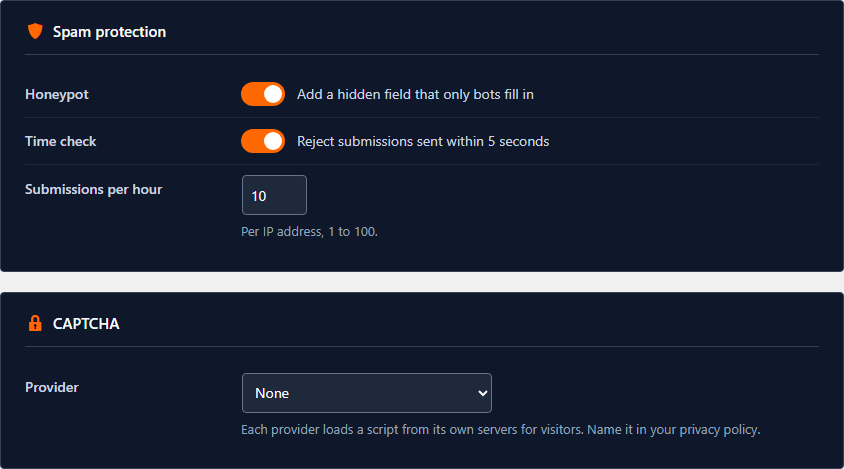
If spam still gets through, choose a CAPTCHA: Google reCAPTCHA v2 or v3, hCaptcha or Cloudflare Turnstile. Each loads a script from its provider and checks the answer on its servers, so name the provider in your privacy policy. More on this in Public feedback without spam.
Step 6: Cover privacy
The send dialog asks visitors for consent and links to the privacy policy page you set under Settings, Privacy. Without a published page the link is missing, so set it up first. A report contains:
- a screenshot of the visible part of the page
- the markers with their notes and an optional message
- the page address, browser and screen size
- the email address, if you ask for it
Describe these data, the purpose and the recipients in your privacy policy. PagePin does not delete reports on its own, so decide how long you keep them and delete them in the Pinshot list, also in bulk. On pagepin.io we delete visitor reports after 10 days. This guide is not legal advice.
Step 7: Test it as a visitor
Open your site in a private window, where you are not logged in. The Feedback button sits in the corner you chose.
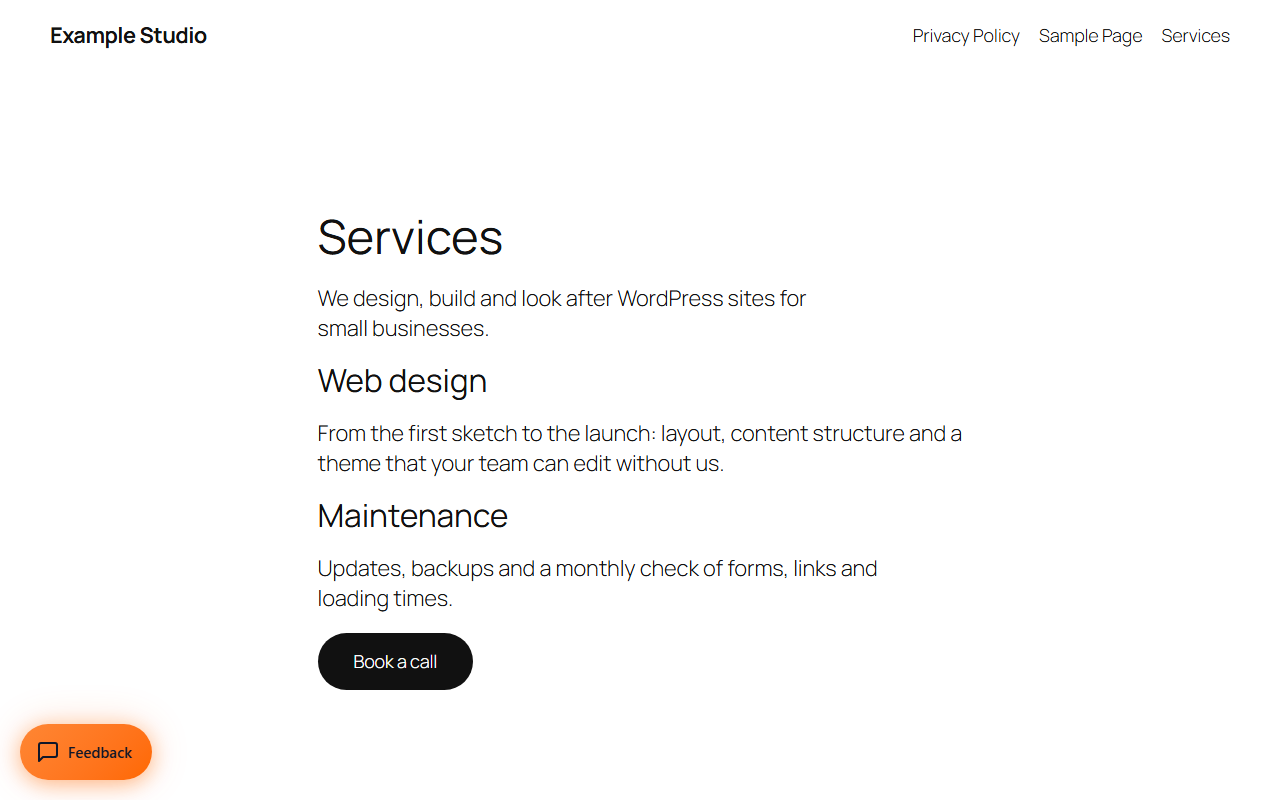
A click opens the Pinshot toolbar. On the first visit a Quick Start shows your welcome text and explains the tools.
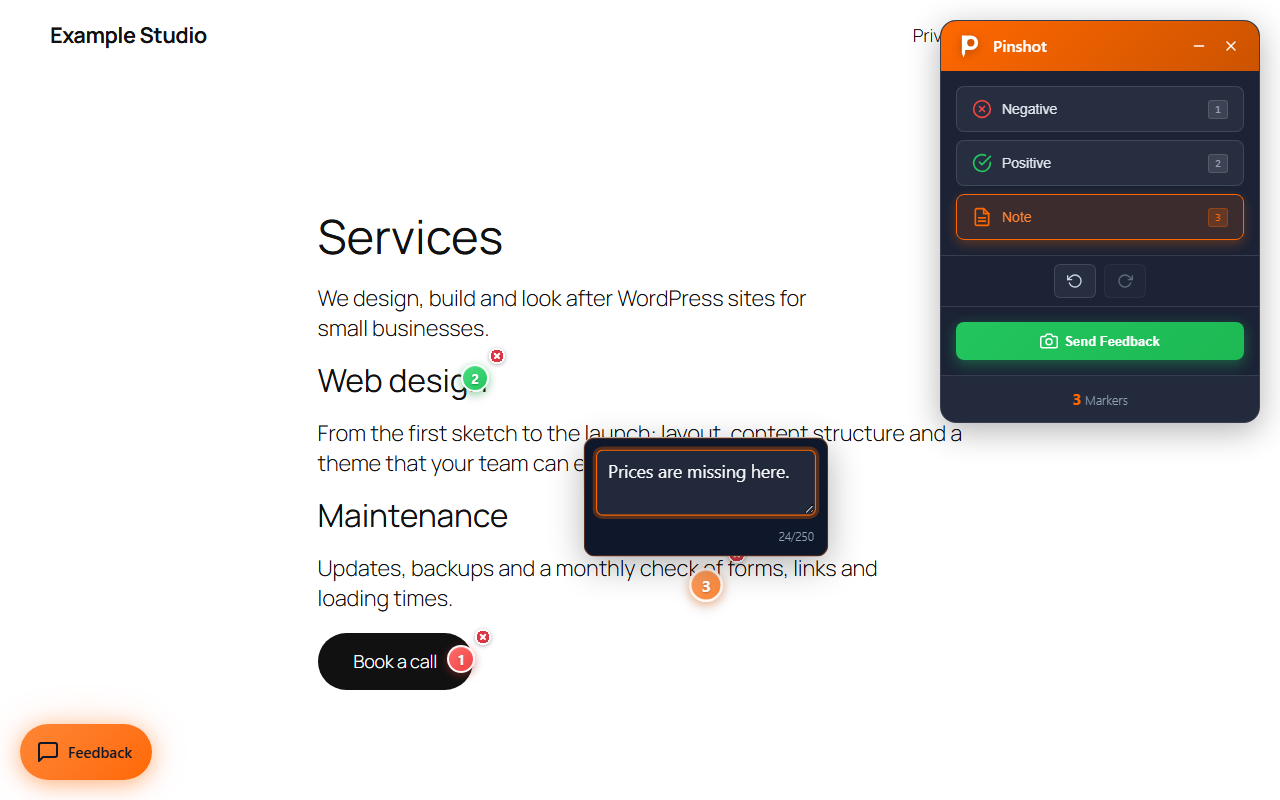
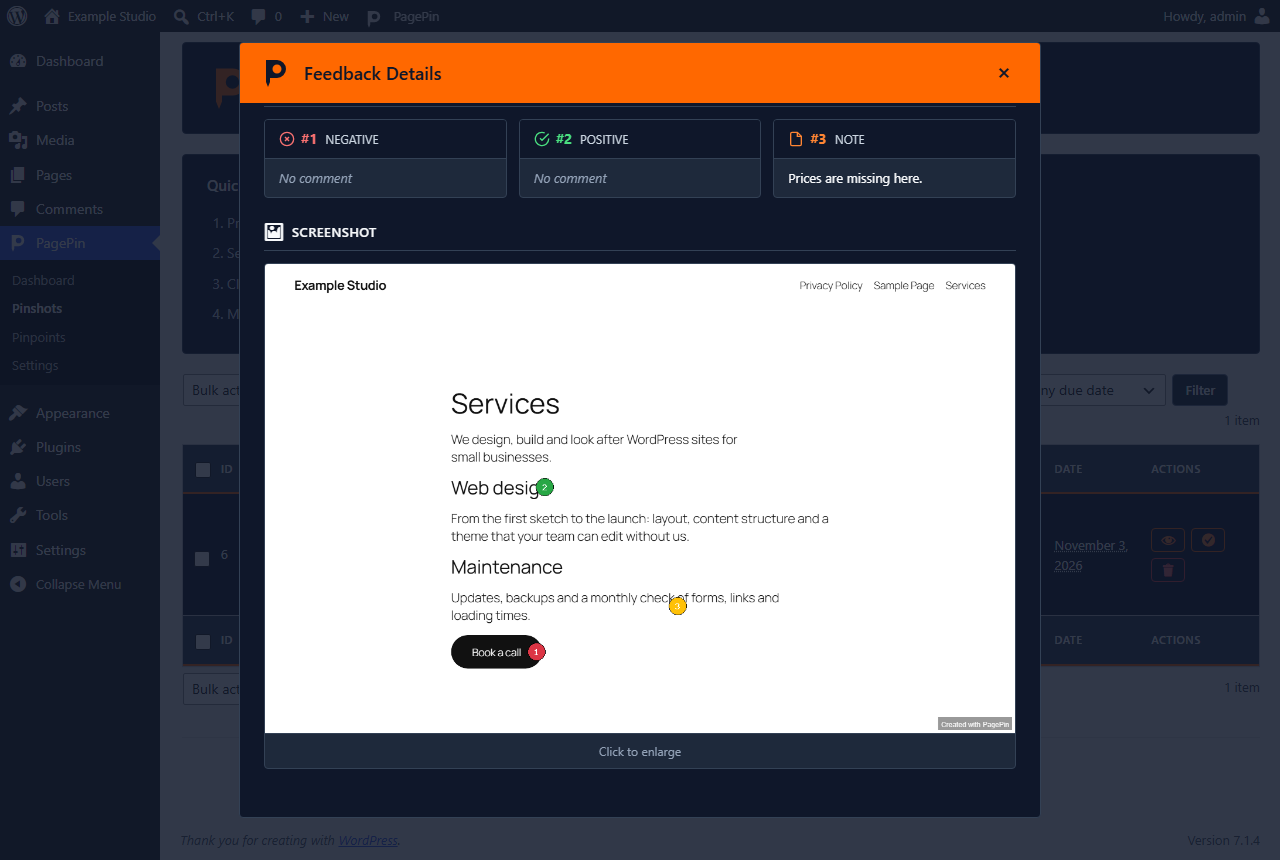
- Pick a tool: 1 for Negative, 2 for Positive, 3 for Note, or click it in the toolbar.
- Click the spot on the page. Every marker gets a number.
- A note takes up to 250 characters. Ctrl+Z undoes the last marker.
- Click Send Feedback.
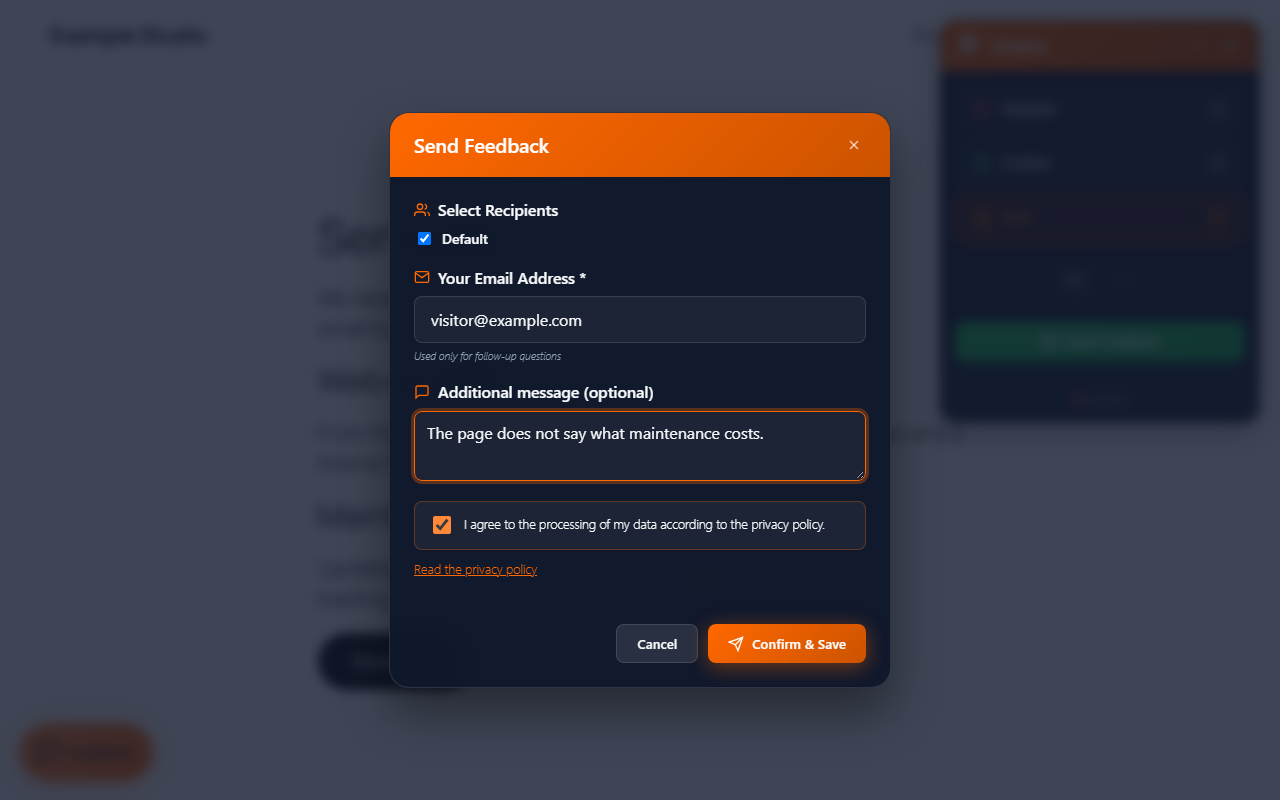
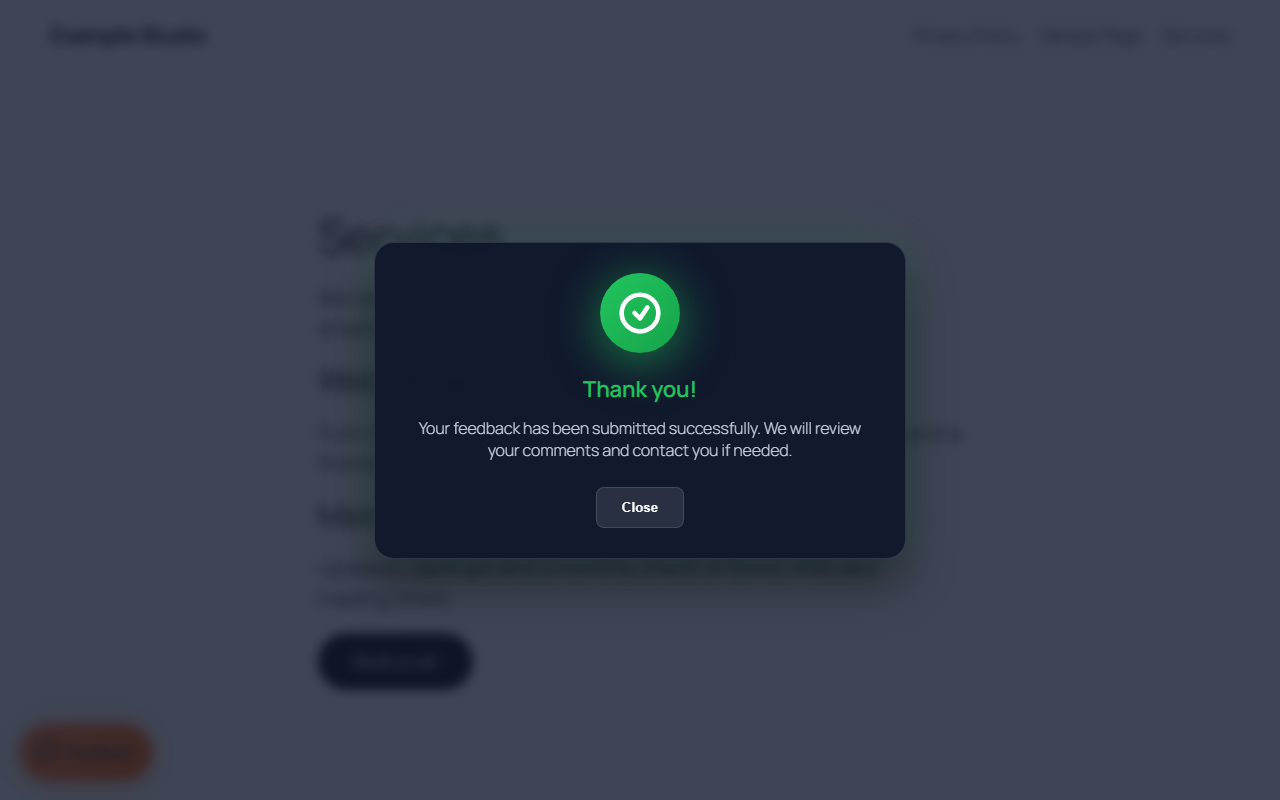
Desktop browsers now ask which tab to share. Choose this tab and the browser takes the screenshot. If the visitor declines or uses a phone, PagePin draws the page itself in the browser. In the dialog the visitor enters an email address and a message, agrees to the privacy policy and clicks Confirm & Save.
Step 8: Work through the reports
Under PagePin, Pinshots you find the report, marked Anonymous with the email address. Its status is Sent, because the email has already gone out. The filter All Users, Anonymous Only shows reports from visitors only.
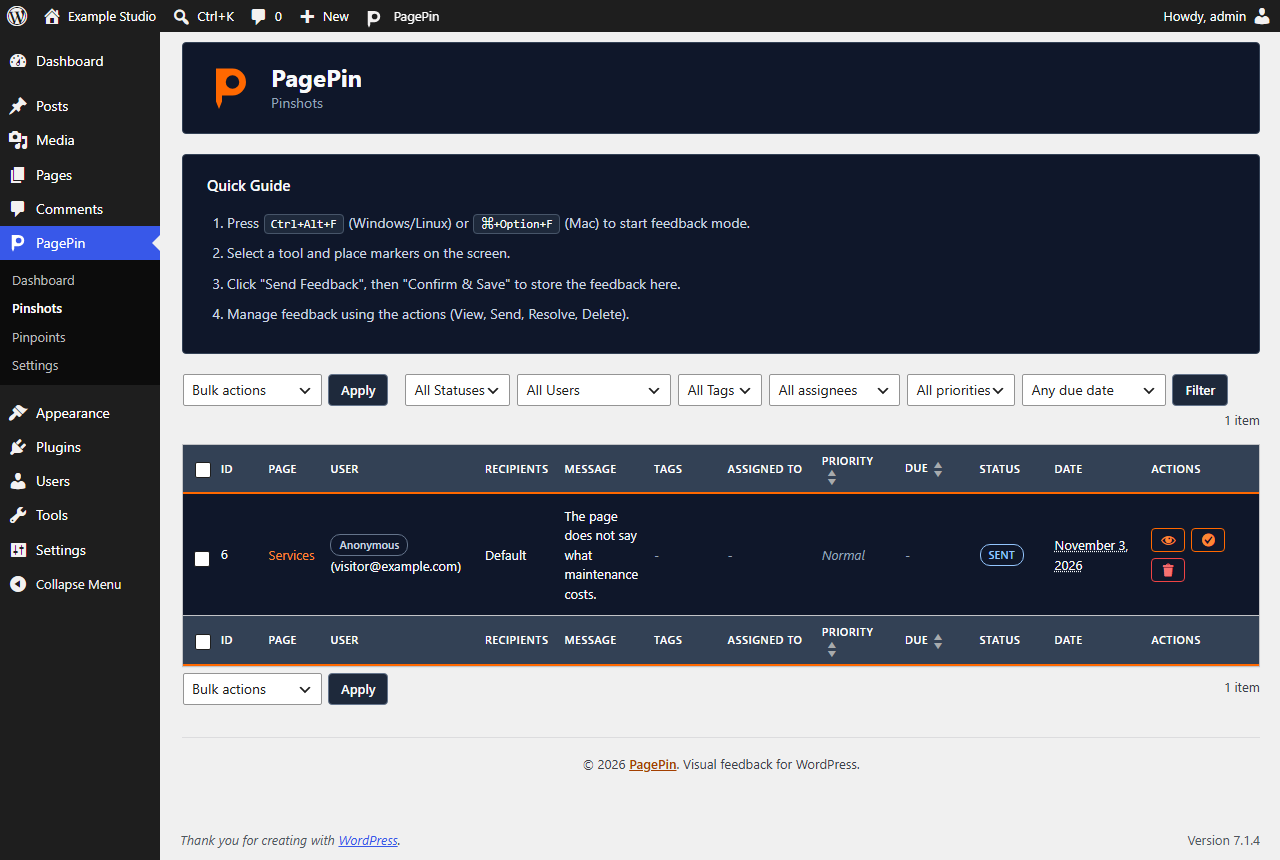
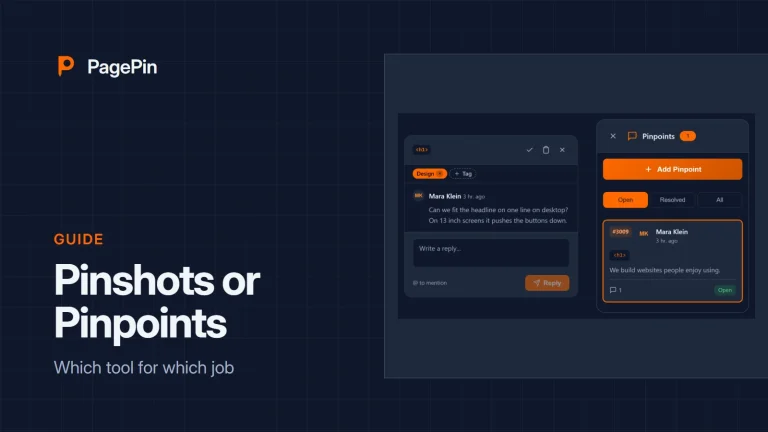
The eye icon opens the details: markers with notes, the screenshot, page, browser and screen size. There you assign the report to someone on your team, set a priority and a due date. The check icon marks it as resolved.
Settings at a glance
| Setting | Tab | Default |
|---|---|---|
| Public feedback | Public feedback | Off |
| Ask for an email address | Public feedback | On |
| Icon for visitors | Public feedback | Speech bubble |
| Text Feedback next to the icon | Public feedback | On |
| Welcome title and text | Public feedback | Default text in the site language |
| Honeypot | Public feedback | On |
| Time check | Public feedback | On, 5 seconds |
| Submissions per hour and IP address | Public feedback | 10 |
| CAPTCHA | Public feedback | None |
| Position of the button | General | Bottom left |
| Colour of the button | General | Orange, hex code ff6800 |
| Recipients | Pinshots | Address of the site admin |
Frequently asked questions
Do visitors need an account?
No. With public feedback on, anyone can send a Pinshot. They need neither a WordPress account nor an account with an external service.
Does PagePin send data to third parties?
No. Reports are stored in your WordPress database and the screenshots in wp-content/uploads/pagepin. Only a CAPTCHA you choose or a webhook you add contacts another server.
Why does the browser ask to share the screen?
The Screen Capture API of the browser takes the most accurate screenshot and needs permission. If the visitor declines, PagePin draws the page in the browser instead.
Can I change the text of the button?
Yes, with the filter pagepin_button_label. Return an empty string to show the icon only, or switch off the text on the Public feedback tab.
Can I change what visitors read before they give feedback?
Yes. On the Public feedback tab you set a welcome title and text, for example to ask for bug reports or for feedback on your product. Empty fields show the default text in the language of the site.
How do I stop public feedback?
Switch off Public feedback on the settings page. Visitors no longer see the button and PagePin no longer loads for them. Existing reports stay in the list.
Sources
- PagePin on WordPress.org, readme and FAQ
- PagePin FAQ, pagepin.io
- Privacy policy of pagepin.io, storage period for visitor reports