
This text was written with the help of AI.
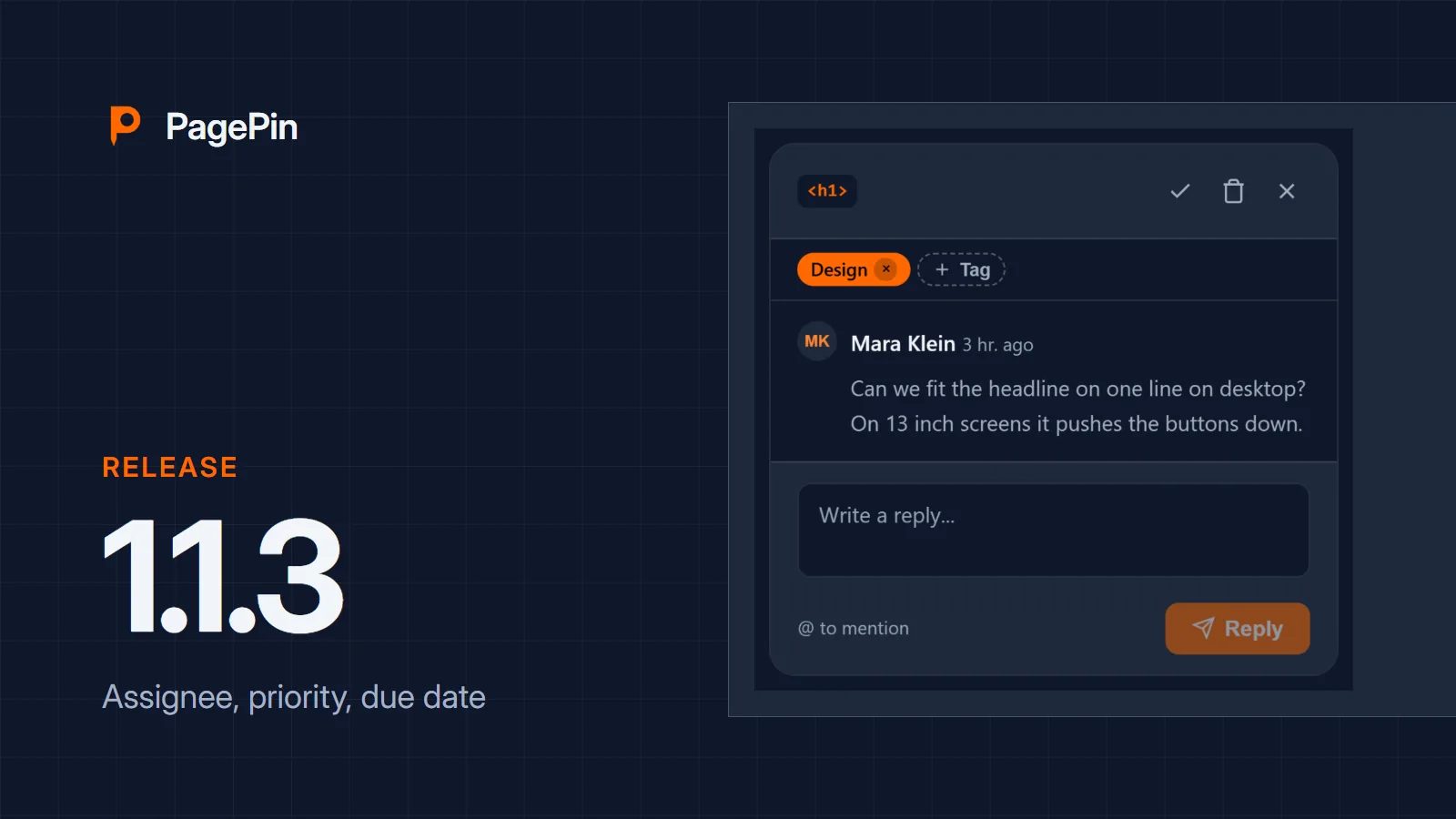
PagePin 1.1.3 was released on WordPress.org on 3 November 2026. Every report now has someone who takes care of it, a priority and a date. It also brings the rebuilt admin screens of 1.1.2, a version that never shipped on its own.
Assignee, priority and due date
- Set them for Pinshots and Pinpoints, in the Pinpoint thread on the page or in the details dialog in the admin
- Priorities: low, normal, high and urgent
- The assigned person gets an email with page, priority and due date
- Overdue items are marked with the word “overdue” in the sidebar, the lists and the editor metabox
- Both lists filter by assignee (“Assigned to me”, “Not assigned”), priority and due date, and sort by priority and due date
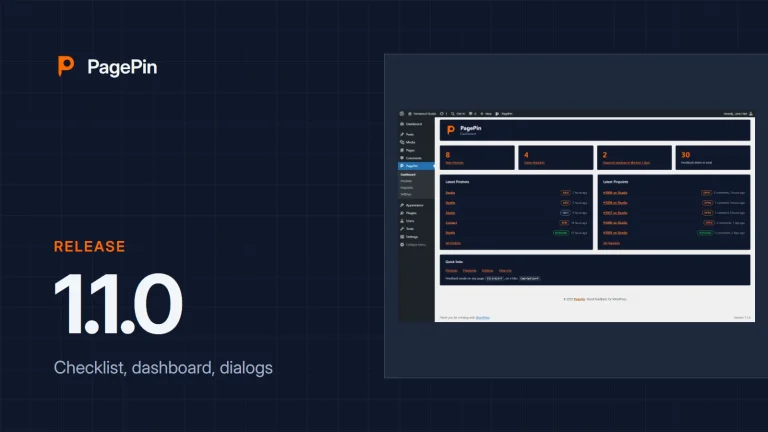
- The dashboard shows your open assignments and the overdue items
Whoever may resolve Pinpoints may assign them; Pinshots are assigned by administrators. You can only assign people who can open the item. Guests cannot be assigned and do not see these fields.
Internal comments
Tick “Internal comment” below a reply in a Pinpoint thread and only your team sees it. Guests with a magic link or a share link never get internal comments, not in the thread and not in their emails. An internal comment cannot mention guests or create share links.
Webhooks
New events report a changed assignee, priority or due date with the old and the new value. Internal comments go only to endpoints where you switch on “Send internal comments”; it is off by default.
From 1.1.2: cleaner admin screens
The admin screens share one dark style for cards, fields, buttons, tables and messages. Field borders, error texts and buttons meet the WCAG 2.2 AA contrast ratios, every field and button shows a visible focus ring, and admin messages stay until you close them. Fixes: bulk archiving in the editor metabox set a wrong status, and admin dialogs could change the look of the feedback dialog.
Added later the same day: 1.1.4 and 1.1.5
- Choose colour, corner and icon of the feedback button
- Visitors without an account get their own button with the text “Feedback”, because they do not know the PagePin logo
- Icon and text turn white or dark, whichever has more contrast on the chosen colour; with the default orange the icon is now dark
- For visitors the button starts Pinshot mode right away, and the send dialog links to your privacy policy
- Notifications are listed below each other, and the button respects reduced motion and the Windows contrast mode
Update 1.1.6.1: visitors know what the feedback is for
- When visitors open feedback mode, the Quick Start shows a title and a short explanation above the steps: Feedback on this website, and whether they found an error, something unclear or something they like
- Change both on the Public feedback tab under Welcome title and Welcome text, for example to ask for bug reports or for feedback on your product. Empty fields keep the default text in the language of the site
- Fixed: without screen sharing (declined, or on phones) the screenshot showed “No Preview” since 1.1.5
- Fixed: in the Pinshot list the columns Page, Recipients and Message shrank to nothing on screens below about 1500 pixels
How to set up public feedback step by step: Collect feedback from visitors in WordPress.
Update
Update PagePin from the Plugins screen in your WordPress admin. Your settings are kept, the database gets three new columns on update. Download: WordPress.org.
Sources
- PagePin changelog, versions 1.1.2 to 1.1.6.1, WordPress.org
- Tag 1.1.3, WordPress.org plugin repository, 3 November 2026
- Tag 1.1.5, WordPress.org plugin repository, 3 November 2026
- Tag 1.1.6.1, WordPress.org plugin repository, 3 November 2026