


This text was written with the help of AI.
With PagePin, every Pinshot and every Pinpoint runs through the same four statuses: Open, In progress, In review and Resolved. If you switch on approval under PagePin, Settings, Pinpoints, finished items wait in In review until a person with an approving role approves them or rejects them with a reason. Both steps work in the admin lists, on the dashboard and, for Pinpoints, in the thread on the page.
This guide explains the statuses, the setup of approval, the daily workflow, the dashboard and the lists, and what changes for webhooks and existing data when you update from 1.1.6.1. Everything here applies to PagePin 1.1.7, the free version on WordPress.org. The screenshots show WordPress 7.1 with the Twenty Twenty-Five theme.
The four statuses
Since version 1.1.7 Pinshots (screenshots with markers) and Pinpoints (comment threads on page elements) share one set of statuses. Badges differ in text and shape, not only in colour: a dot, a half circle, a clock and a check mark.
| Status | Value in the database and webhooks | Meaning |
|---|---|---|
| Open | open | Newly reported or rejected. Every new report from the frontend, from guests and from visitors starts here. |
| In progress | in_progress | Someone works on it. |
| In review | review | Done and waiting for approval. Only exists while approval is on, or for items that were in review when you switched it off. |
| Resolved | resolved | Finished. With approval it also shows who approved it and when. |
Without approval the flow is short: Open and In progress switch back and forth, both can go to Resolved, and Reopen sets a resolved item back to Open.
Switch on approval
Approval is off by default. Turn it on when your team wants a second pair of eyes before a fix counts as done, for example a project lead who checks every change before it goes to the client.
- Open PagePin, Settings in the WordPress admin and choose the Pinpoints tab.
- In the card Approval switch on Require approval.
- Under Can approve tick the roles that may approve. Administrator is ticked by default.
- Click Save Settings.
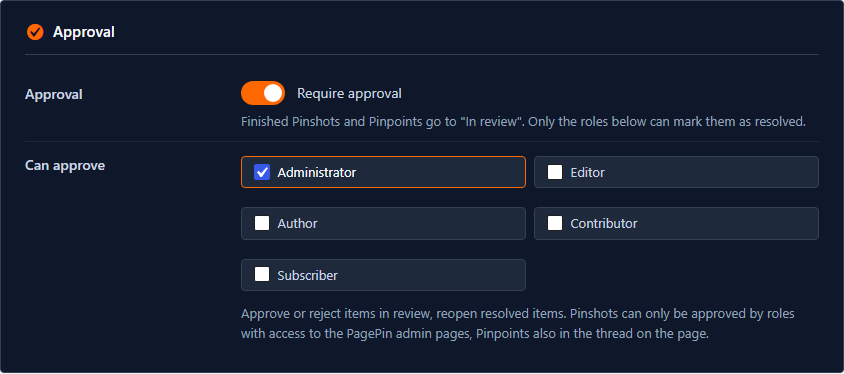
Two rules decide who sees which button. Setting Open, In progress and In review needs the same rights as before: manage_options for Pinshots, and for Pinpoints one of the roles that may resolve Pinpoints (Administrator and Editor by default). Approving, rejecting and reopening a resolved item needs one of the approving roles. On a multisite network super admins may always approve.
Pinshots live on the PagePin admin pages, which require manage_options. In practice only administrators approve Pinshots. Pinpoints can also be approved by an editor, for example, right in the thread on the page.
The workflow from report to approval
With approval switched on, a report takes these steps:
- Report: a team member, a guest or a visitor sends a Pinshot or starts a Pinpoint. The status is Open.
- Start work: the person who fixes it clicks Start work. The status is In progress.
- Request review: after the fix the same person clicks Request review. The status is In review, and PagePin stores who asked (shown as Requested by).
- Approve: a person with an approving role checks the fix and clicks Approve. The status is Resolved, with Approved by, name and date.
- Or reject: the approver clicks Reject and enters a reason. The reason is required. The item goes back to Open.
An approver may approve an item they sent to review themselves. If the status changed in another tab in the meantime, PagePin reports a conflict, says that the status was changed and reloads the row with the current buttons.
Where the reason of a rejection ends up
For a Pinpoint the reason becomes an internal comment in the thread, so guests with a magic link never see it. For a Pinshot it is stored with the item and shown at the top of the details dialog until the next rejection replaces it.
What happens when you switch approval off again
Items that are In review at that moment stay there and keep their Approve and Reject buttons. No new item can go to review. The dashboard keeps showing them under Waiting for approval until the list is empty.
The dashboard
PagePin, Dashboard is the place to start the day. It shows six numbers, each counting Pinshots and Pinpoints together, with the split underneath and a link into the filtered list:
- Open
- In progress
- In review (only with approval)
- Assigned to me (Open and In progress)
- Overdue
- Resolved in the last 7 days (the split without links, because the lists do not filter by date)
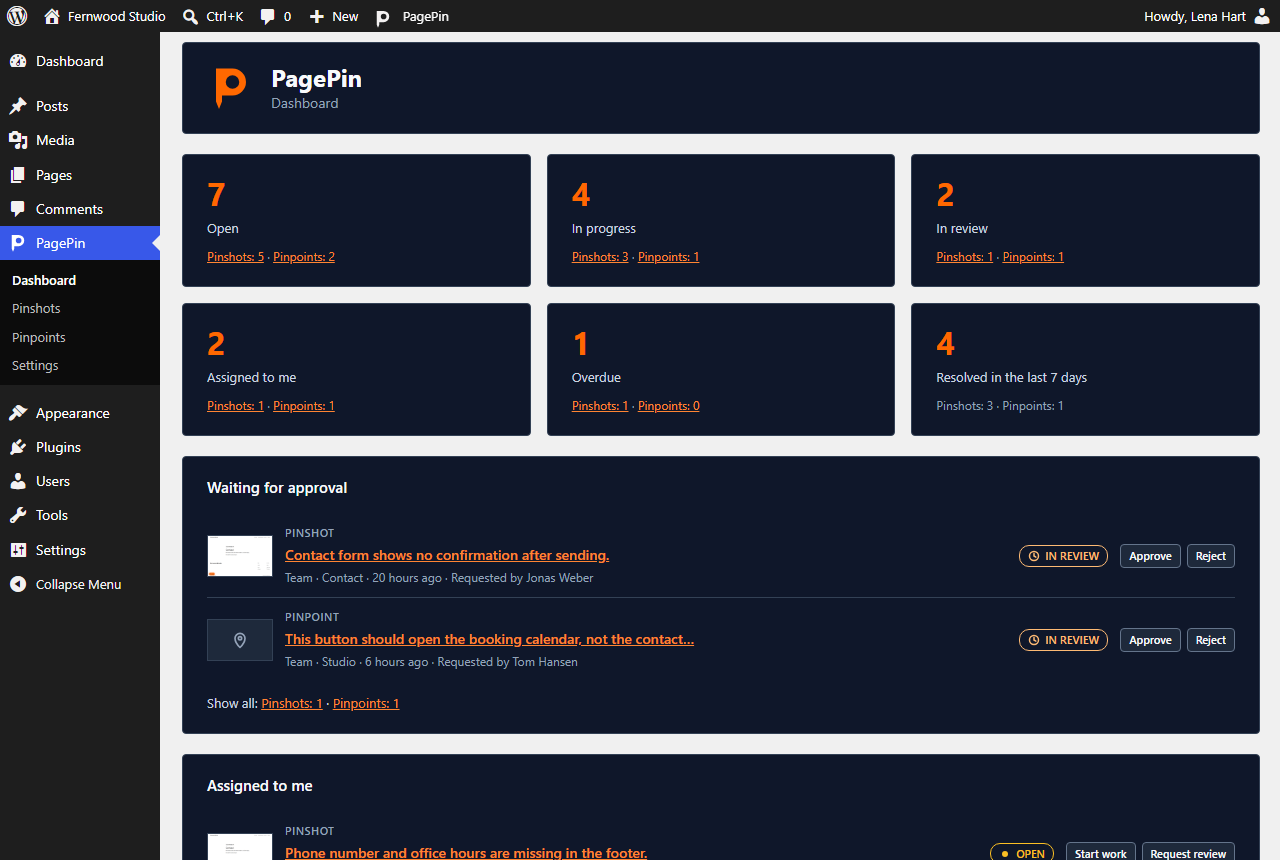
Below the numbers follow three lists of up to 10 entries each. Waiting for approval shows the oldest items first, with a thumbnail of the Pinshot or an excerpt of the first comment, the page and Requested by. Approve and Reject work right in the row, without a page reload. Reject opens a dialog with a required field for the reason.
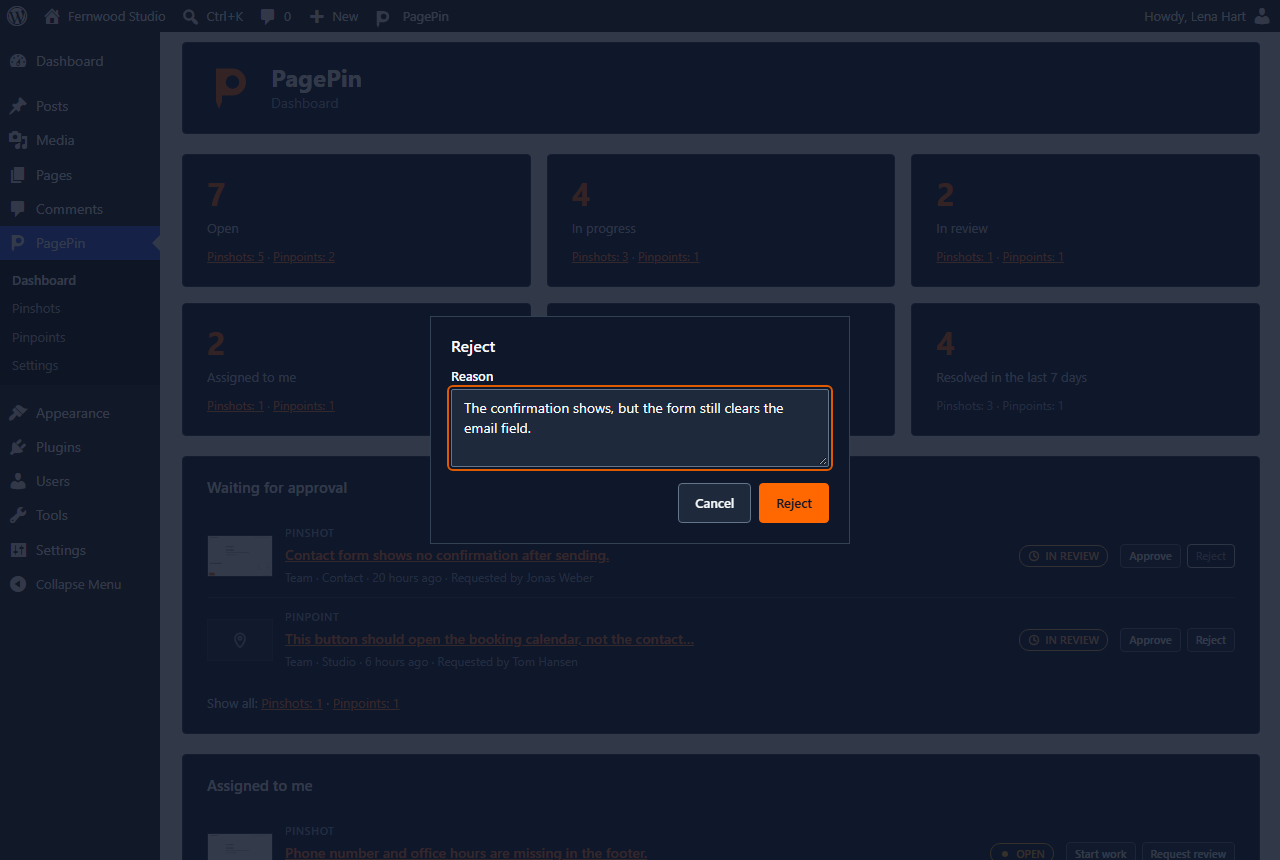
Assigned to me lists your open items, sorted by due date and then by priority. Recently received puts the latest Pinshots and Pinpoints into one list and marks each entry as Pinshot or Pinpoint and as coming from the team or from a visitor. It replaces the two lists Latest Pinshots and Latest Pinpoints of earlier versions.
Status tabs and bulk actions in the lists
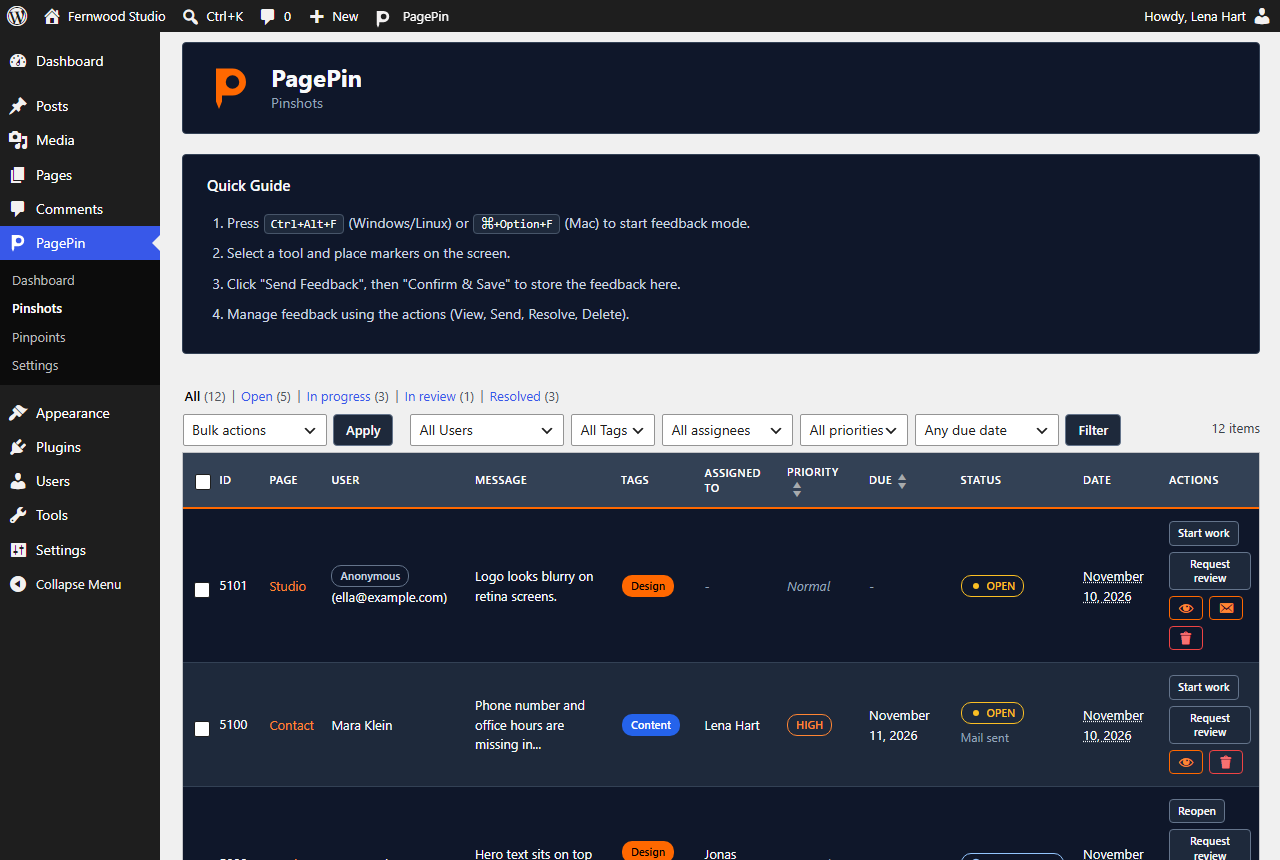
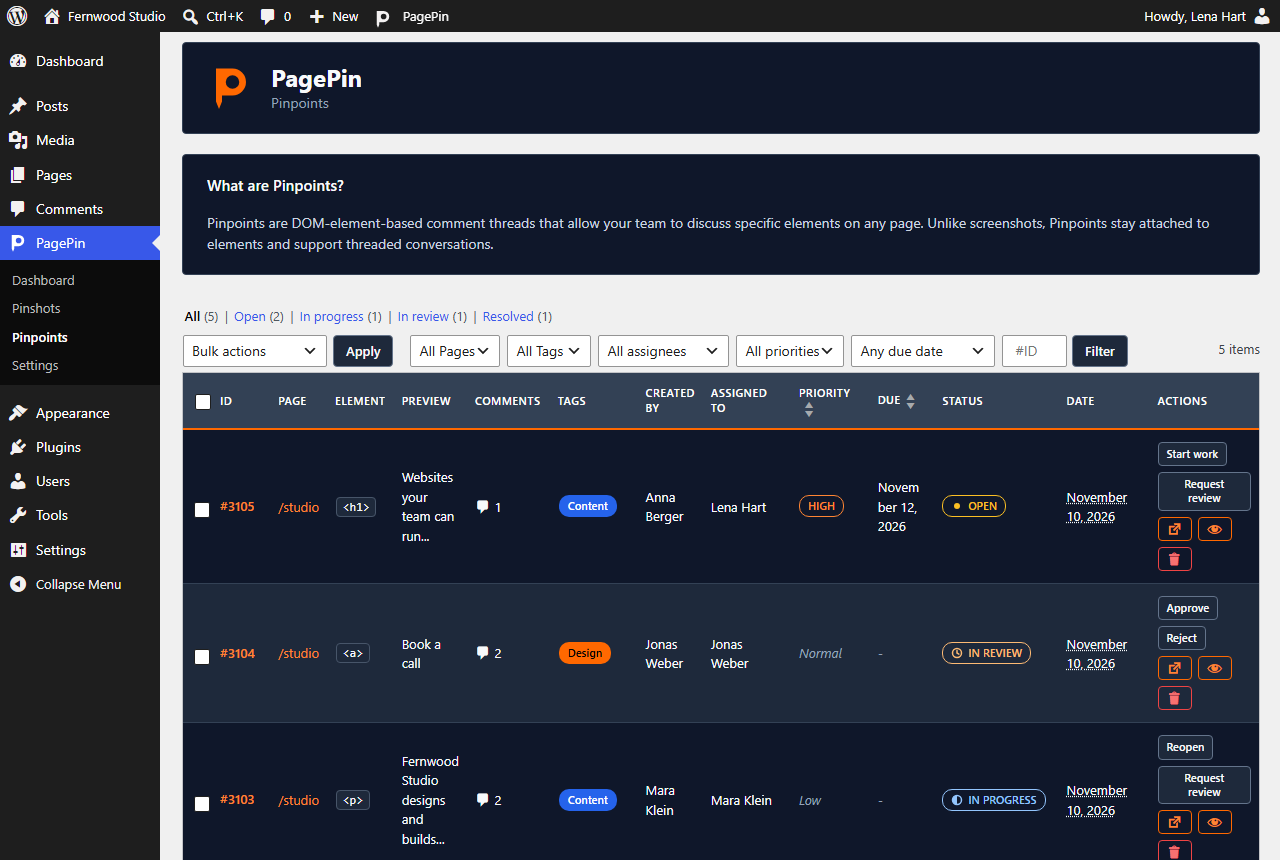
Above the Pinshot list and the Pinpoint list you find status tabs in the WordPress style: All, Open, In progress, In review and Resolved, each with the number of items. They replace the status dropdown. Every row shows its badge and only the buttons that are allowed for you, for example Start work and Request review for an open item, or Approve and Reject for an item in review.
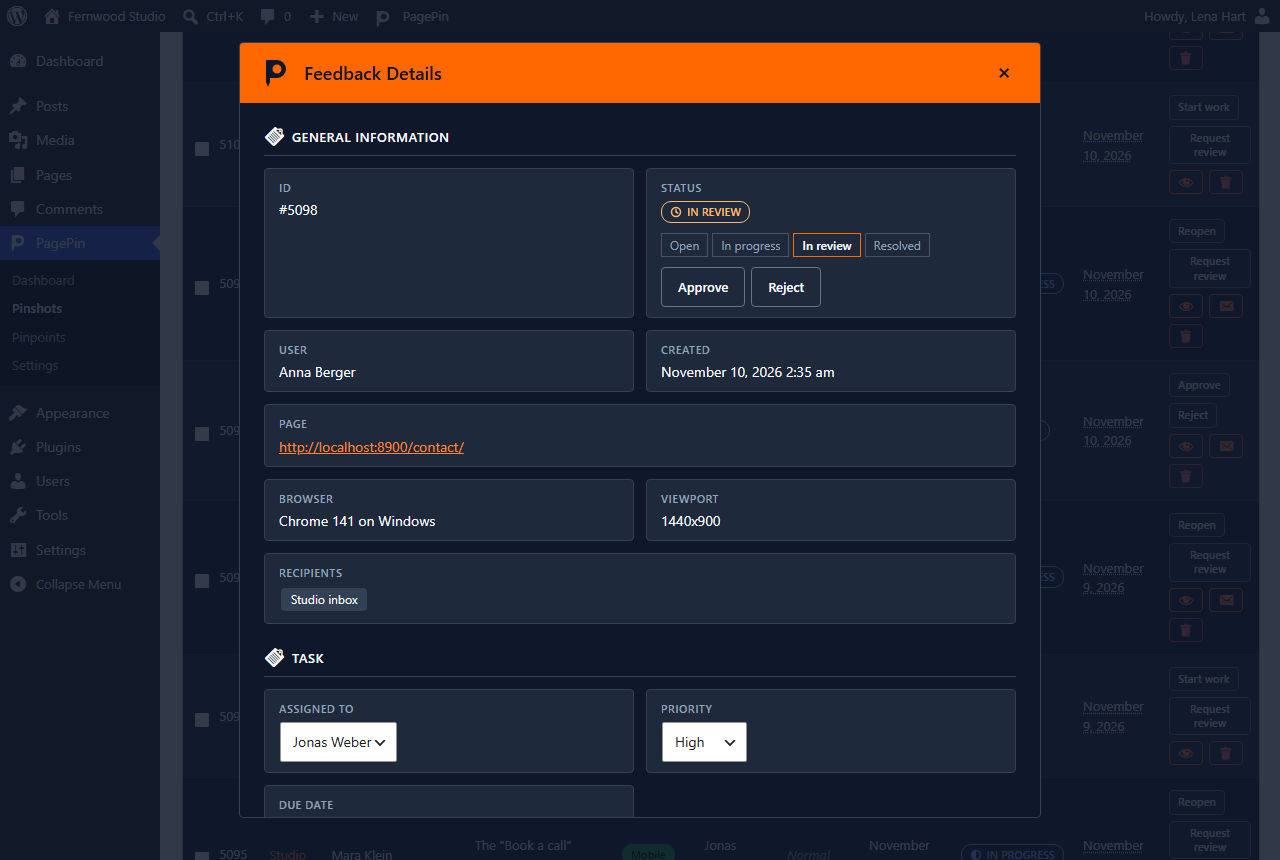
The eye icon opens the details. A status bar shows the four steps with the current one marked, and the buttons below it follow the same rules.
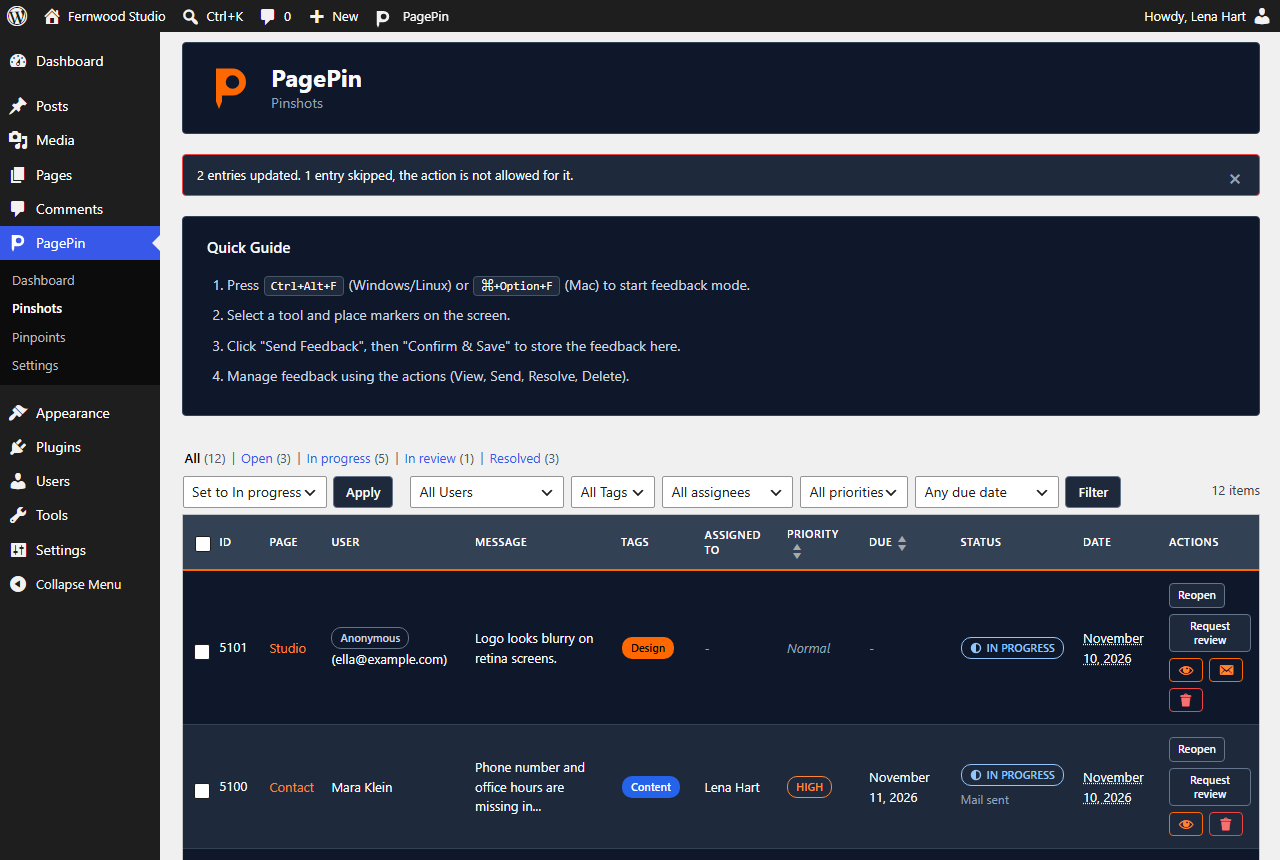
Bulk actions offer Set to In progress, Request review, Approve (Mark as resolved without approval), Reopen and Delete. PagePin checks each selected item on its own. Items where the action is not allowed are skipped, and the notice tells you how many. Reject only works one item at a time, because every rejection needs its own reason.
The Pinshot list no longer has the column Recipients. When a Pinshot went out by email, Mail sent appears under the status; hovering it shows recipients and date. On the Pinpoint page the number cards are gone, the tabs show the counts.
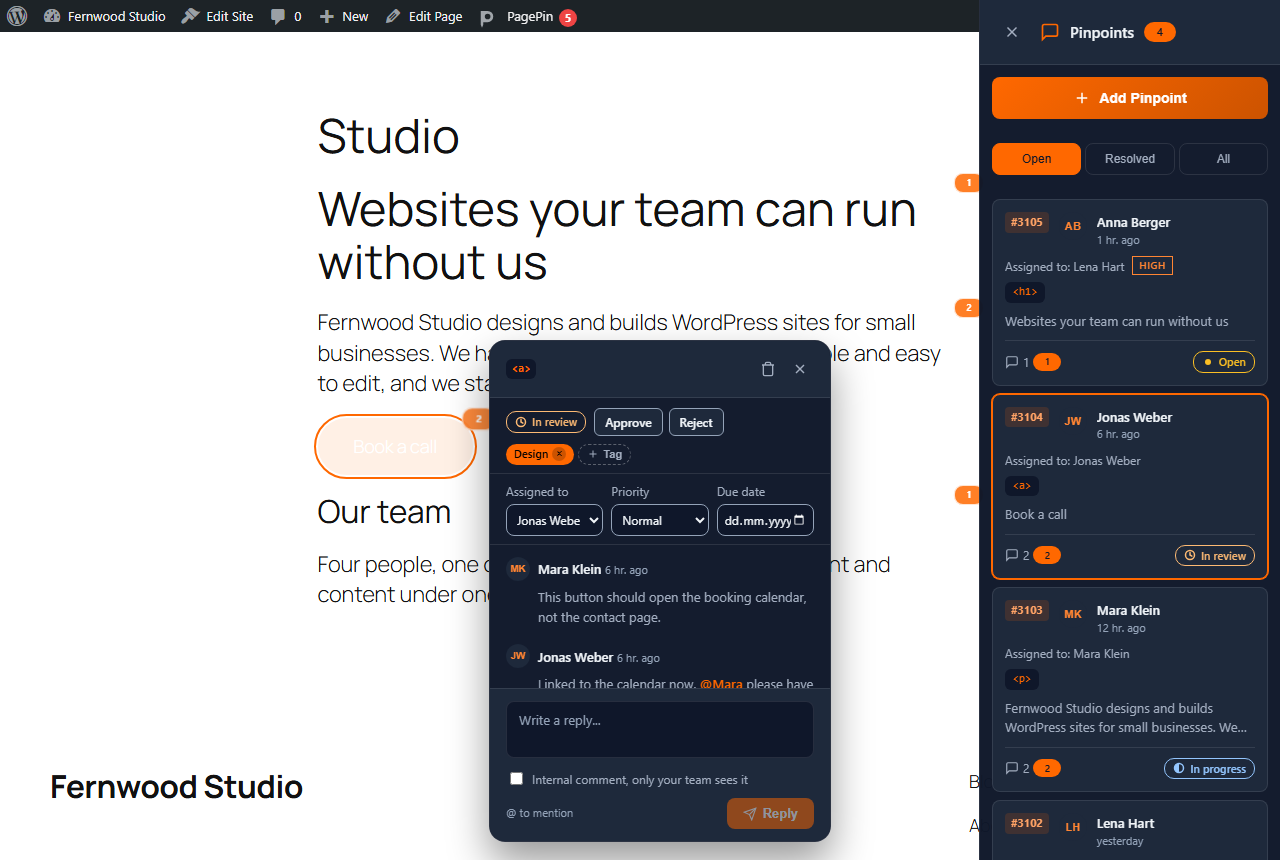
Approve in the thread on the page
Pinpoints carry the same status bar in the thread on the page. Open the sidebar with the PagePin button, choose a Pinpoint and you see the badge with the buttons that are allowed for you. Reject opens a field for the reason right in the thread. Approved Pinpoints show Approved by with name and date.
Emails
PagePin uses its existing email templates for two new messages:
- In review: everyone who may approve gets an email, except the person who set the status. For Pinshots only users with
manage_options, for Pinpoints only users whose role may also view or resolve Pinpoints. - Rejected: the assigned person gets an email with the reason. Without an assignee it goes to the person who requested the review. Whoever rejects gets no email.
Webhooks for developers
If you send PagePin events to a webhook endpoint (PagePin, Settings, Webhooks), version 1.1.7 adds six events: pinshot.review_requested, pinshot.approved, pinshot.rejected and the same three for pinpoint. Each of them is sent together with the usual status_changed event.
- Every payload carries
statuswith one of the four values and, since 1.1.7,approved_byandapproved_at. status_changedand the three new events also carryprevious_status.rejectedaddsreject_notewith the reason.- Sending a Pinshot by email only sets
sent_atand no longer triggerspinshot.status_changed.
Example of a rejected Pinpoint, shortened to the fields that matter here:
{
  "type": "pinpoint.rejected",
  "timestamp": "2026-11-10T14:05:12Z",
  "data": {
    "id": 3104,
    "status": "open",
    "previous_status": "review",
    "reject_note": "Still links to the contact page on mobile.",
    "approved_by": null,
    "approved_at": null
  }
}The pagepin_event action fires for the new events as well, with or without an endpoint.
Updating from 1.1.6.1
The update converts existing data on its own when WordPress loads PagePin 1.1.7 for the first time. You do not need to start anything.
| Before 1.1.7 | After the update |
|---|---|
| Pinshot New or Pending | Open |
| Pinshot Sent | Open, with Mail sent and the date of the report |
| Pinshot Resolved | Resolved |
| Pinpoint Open or Resolved | unchanged |
| Pinpoint Archived | Resolved, the action Archive is gone |
Check your webhook receivers before you update. Old values like new, pending, sent or archived no longer appear in the payload, and a receiver that waits for sent will not see it again. Approval stays off after the update until you switch it on.
For the first steps with PagePin, from the installation to reports by visitors, see Collect feedback from visitors in WordPress. Download PagePin for free on WordPress.org.
Frequently asked questions
Is approval on by default?
No. After installing or updating, PagePin works with the three statuses Open, In progress and Resolved. In review appears only when you switch on Require approval under PagePin, Settings, Pinpoints.
Who can approve Pinshots?
Users with an approving role and access to the PagePin admin pages, which require manage_options. That usually means administrators. Pinpoints can also be approved by other approving roles in the thread on the page.
Can a client approve a fix?
Not in version 1.1.7. Approval is internal and limited to WordPress roles. Guests with a magic link cannot approve or reject a Pinpoint.
Why is a reason required to reject?
The person who fixed the item needs to know what is still wrong. The reason goes to them by email and stays with the item: as an internal comment in the Pinpoint thread or at the top of the Pinshot details.
Where did the status Sent go?
Sending a Pinshot by email is no longer a status. The update sets former Sent Pinshots to Open, and the list shows Mail sent next to the status.
Do webhook receivers need changes?
Yes, if they check status values. Payloads now use open, in_progress, review and resolved and carry previous_status. Sending a Pinshot by email no longer triggers pinshot.status_changed.
Sources
- PagePin changelog, version 1.1.7, WordPress.org
- Tag 1.1.7, WordPress.org plugin repository
- PagePin on WordPress.org, readme and FAQ